
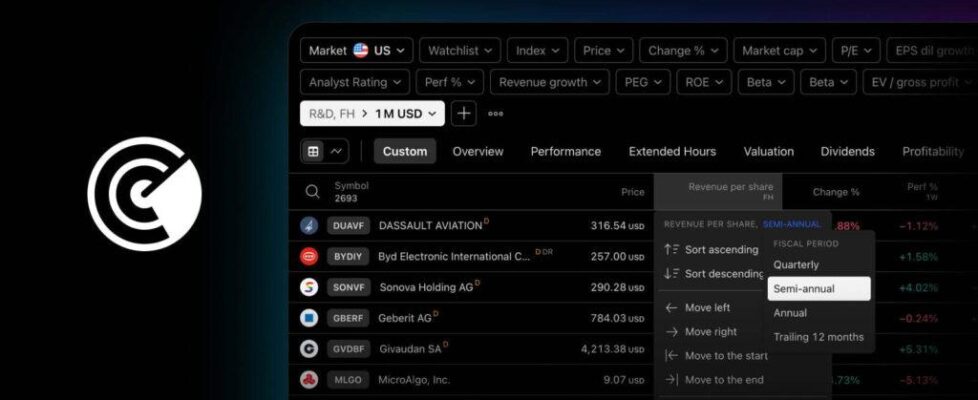
TradingView adds per share metrics to Stock Screener

TradingView has introduced a powerful set of per share metrics to the Stock Screener and symbol pages. These are designed to help traders compare companies more accurately.
Per share metrics let you evaluate companies regardless of their size. They highlight a business’s efficiency, its attractiveness to shareholders, and its financial flexibility.
Take free cash flow (FCF) per share as an example. This metric shows how much free cash flow (the funds left after capital expenditures) is attributable to each share. It is an important metric for understanding a company’s ability to finance dividends, buy back shares, or reduce debt without relying on external funding.
TradingView has also added half-year as a reporting period for key financial metrics. This value sums the last two consecutive quarterly figures, making it especially useful for analyzing companies with non-standard reporting schedules – often found outside the U.S.
To boost transparency and clarity, two new columns have been added:
- Fiscal period end — the date marking the end of the reporting period for which the company prepares its financial statements. For example, June 30, 2025, would be the specific end date of a reporting period.
- Fiscal period — indicates the company’s reporting period to which the financial statements apply, such as Q2 2025, H1 2025, or FY 2024. This helps identify exactly which period the metrics correspond to.
These new columns give clarity on the reporting period behind each metric, so cross-company comparisons are easier and more accurate.

The Stock Screener now supports the following reporting periods:
- Quarterly
- Half-year
- Annual
- TTM (trailing twelve months)
In the Stock Screener, you can simply add per share metrics as columns or filters.
To add a filter, click the + button or press Shift + F on Windows and Mac devices in the top panel, then choose your desired metric. Then select the required reporting period. After adding the filter, you can customize it: select Manual setup from the filter drop-down list and enter your specific filter conditions.
You can also add columns with the desired metrics by clicking the plus sign in the table header or using the Shift + C shortcut on Windows and Mac devices. Simply set the required reporting period, and sort the list as needed.
To make your analysis even more efficient, TradingView also added a new column set. It already contains all the important per share metrics, so you don’t have to set your screener manually.
Per share metrics are also accessible on stock symbol pages. Simply navigate to the Financials tab, select Statistics, and scroll down to the Per share metrics section.