
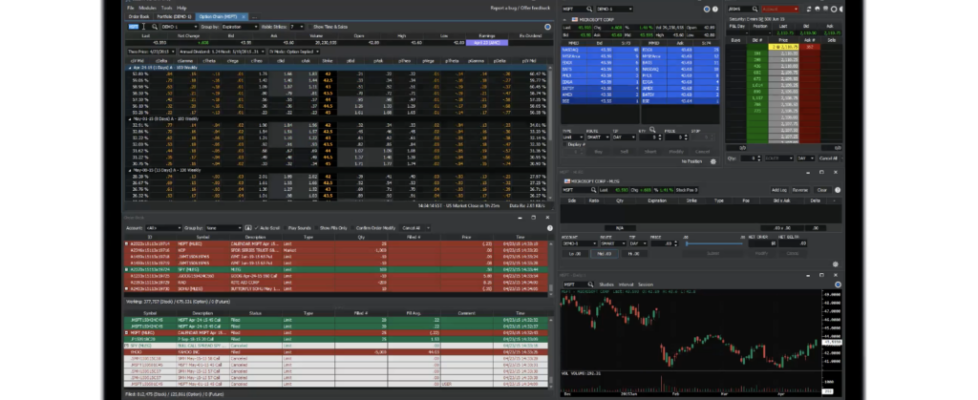
New release of Cboe Silexx enhances API, Option Chain, and Order Ticket

Cboe Silexx, a multi-asset order execution management system (OEMS) that caters to the professional marketplace, has announced the release of version 25.17, including a series of enhancements to API, Option Chain, Order Ticket, and Portfolio.
- API | Improved Error Messages for Price Validation
The API now returns more descriptive error messages when order prices do not meet tick increment requirements. These enhanced messages help developers and traders quickly identify and correct price validation issues.
- API | Performance Improvements with Position Query Caching
A new caching mechanism has been implemented for position queries submitted via the API. This improvement reduces redundant database calls and significantly enhances response times for applications that frequently request position data.
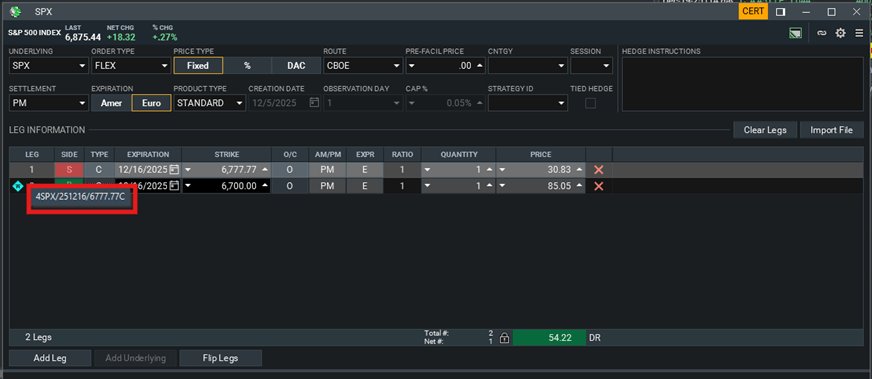
- FLEX Order Ticket | Display FLEX
Added a hover state over the ‘Leg’ column in the FLEX Order Ticket that displays the complete FLEX symbology (Root/Expiration/Strike[C/P]) once all required fields have been entered. This enhancement helps traders verify they are trading the intended FLEX contract before submitting orders. The symbology format follows Cboe standards, with the lead character indicating settlement type, exercise style, and delivery method (e.g., 4SPX/251031/6777.77C for PM European Cash-settled index options, or %4SPX/251031/105C for percent strike options).
- Position Analyzer | Support for Large Portfolios
Performance enhancements were made so that Position Analyzer can handle over 40 positions for an underlying.
- Option Chain | Disable Cancel Order Confirmation
Option Chain no longer requires a cancel confirmation when canceling orders directly from the Option Chain if File > Settings > Warnings and Confirmations > Confirm on cancel order is disabled.
- Option Chain | Display Positions Without Position Markers
Users can now choose to display position information in the Option Chain without showing the position marker columns. This option provides a cleaner view while still showing position quantities and can be configured in Option Chain Settings > General > Show Position Markers.
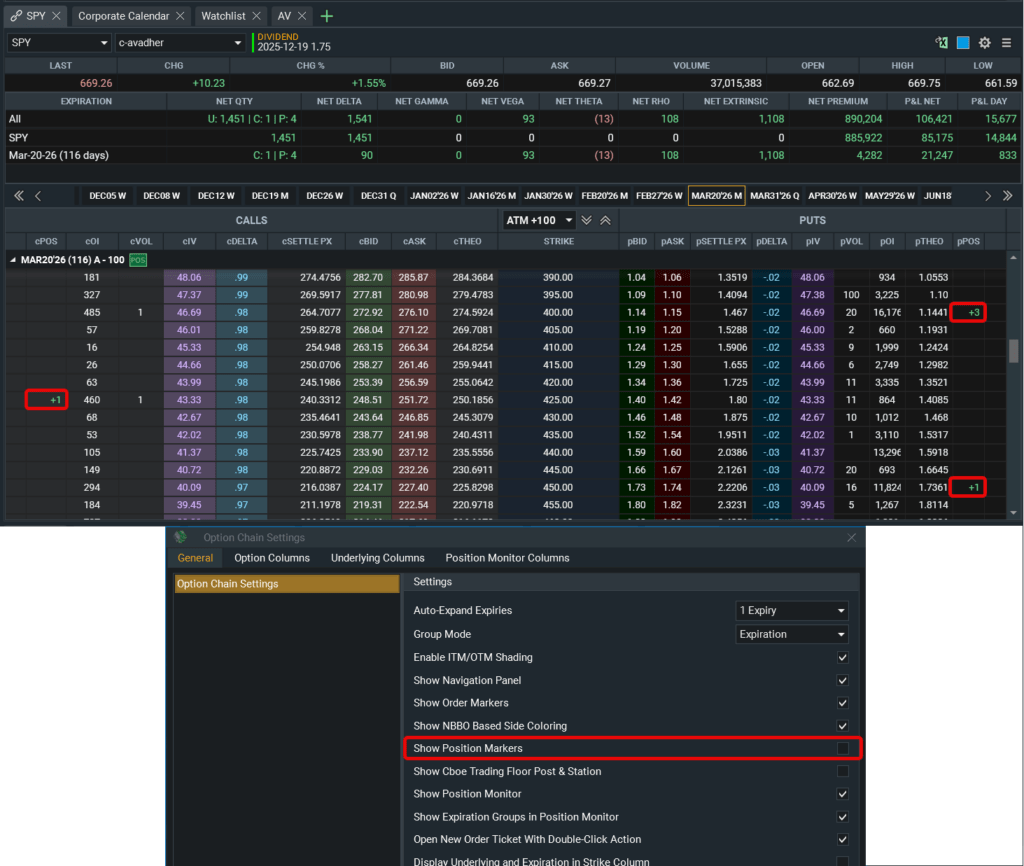
- Option Chain | Position Filter Toggle
A new toggle button (briefcase icon) allows users to filter the option chain to display only strikes where they have positions. This feature helps users quickly assess their holdings and determine order execution strategies without scrolling through the entire chain. The filter works for both calls and puts and respects the account(s) selected in the option chain.
- Option Chain | Press and Hold Auto-Scroll Navigation
The Option Chain now supports press and hold functionality on the left and right single arrow buttons for faster expiry navigation. After holding, the arrows will automatically scroll through expirations, making it easier to navigate through multiple expiries quickly.
- Option Chain | Remove Quote Time Columns
Since there was no data feed populating the following fields, cBid Time, cAsk Time, pBid Time, and pAsk Time, they were removed as column selections. This cleanup improves the user experience by eliminating non-functional columns and streamlining the available column options in the Option Chain configuration.
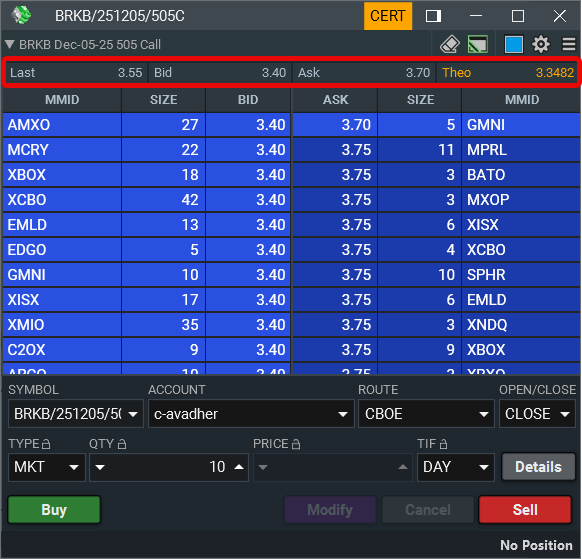
- Order Ticket | Default Quote Panel
If opening a new Order Ticket without a default saved, the quote panel will display Last, Bid, Ask, and Theo (left to right). The Theo value now highlights in orange if falling outside of the NBBO, providing visual alerts for potential pricing discrepancies. Existing user configurations will remain unchanged.
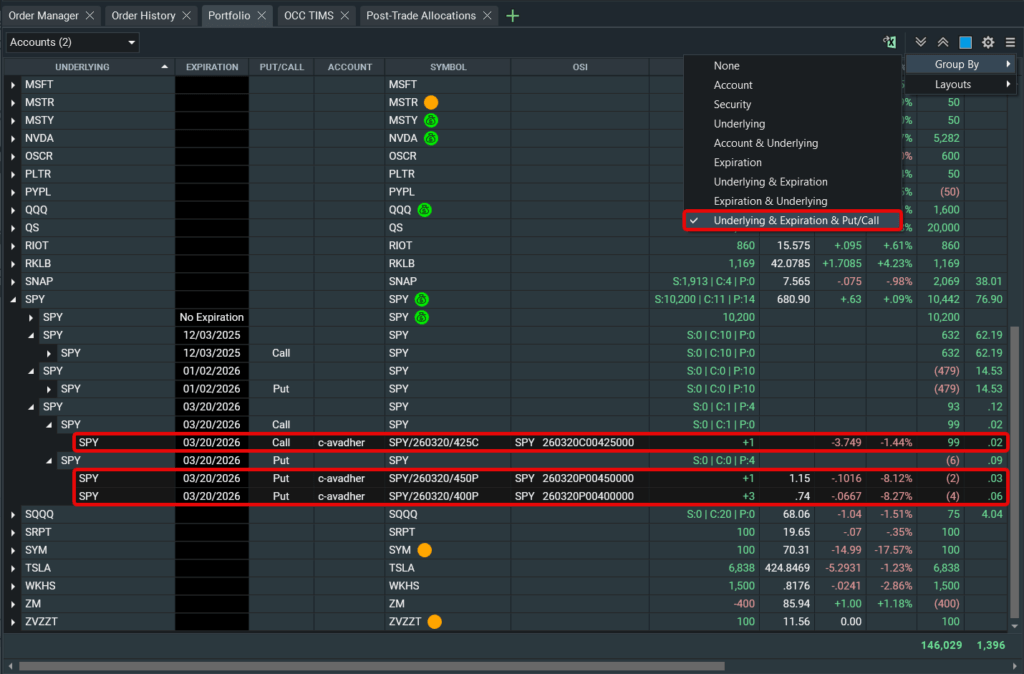
- Portfolio | Group By Underlying, Expiration & Put/Call
A new grouping option has been added to the Portfolio module allowing users to group holdings by Underlying, Expiration, and Put/Call. This provides clear visibility into directional exposure, skew structures, and maturity-specific risk at the put/call level. Each group level displays aggregated metrics including Delta, Greeks, P&L, exposures, and other key position data.
- Portfolio | Prevent Linking Updates on Right Mouse Clicks
Users can now access the right-click menu in Portfolio without updating linked windows with the selected symbol. Symbols will only be sent to linked modules when using a left-click, preventing unintended updates during right-click actions.
- Watchlist | Prevent Linking Updates on Right Mouse Clicks
Users can now access the right-click menu in Watchlist without updating linked windows with the selected symbol. Symbols will only be sent to linked modules when using a left-click, preventing unintended updates during right-click actions.
- Watchlist | Symbol Arrangement
Users can now manually arrange symbols in the watchlist by moving them up or down via the Move Up, Move Down, and Move To Top buttons introduced in the toolbar. Manual sorting works on single symbol selections and is available when column header sorting is disabled.